
How to Find and Use Your Sitemap
-
1
Find Your Sitemap
- Visit your website homepage.
- Add /sitemap.xml to the URL and press Enter.
Open an Example Sitemap for the Digital Commons Support Website
-
2
Understand Sitemap URLs
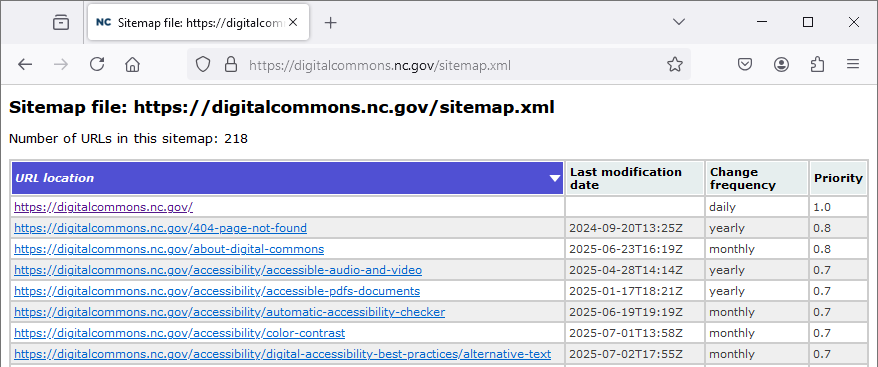
The Sitemap is generated by the Drupal XML Sitemap module. It provides the total number of URLs in the Sitemap, followed by a table containing metadata about each URL. Each table heading is sortable. Learn about Sitemap Protocol standards.
URL Location
This column provides the path to the webpage and a link to it. Note: Screen readers will read the full path.
-
3
Understand Last Modification Date
This information, particularly the time, is not as straightforward as you might assume. The date and time that the page was last saved is provided in W3C Datetime format (YYYY-MM-DDTHH:MMZ).
Let's break down an example: 2025-08-06T17:41Z
Date
In this example, the date (YYYY-MM-DD)is 2025-08-06, which indicates that the page was last modified on August 6, 2025.
Time
Times are expressed in Coordinated Universal Time (UTC), which uses the 24-hour clock. It is the basis for civil time in all time zones worldwide, as well as military time. In the example, the time (THH:MM) is T17:41. You might have assumed this translates to 5:41 PM, but that is incorrect. UTC is fixed at the Prime Meridian, or 0 degrees longitude, not your current location's time zone.
Time Zone
While some clocks may automatically calculate how many hours ahead (+) or behind (-) UTC you are in your current time zone, the Drupal module generating your Sitemap does not by default. In the example, the time zone (Z) indicates that no adjustment has been made and reflects the time it was at the Prime Meridian when the page was updated. It may also be referred to as Zulu.
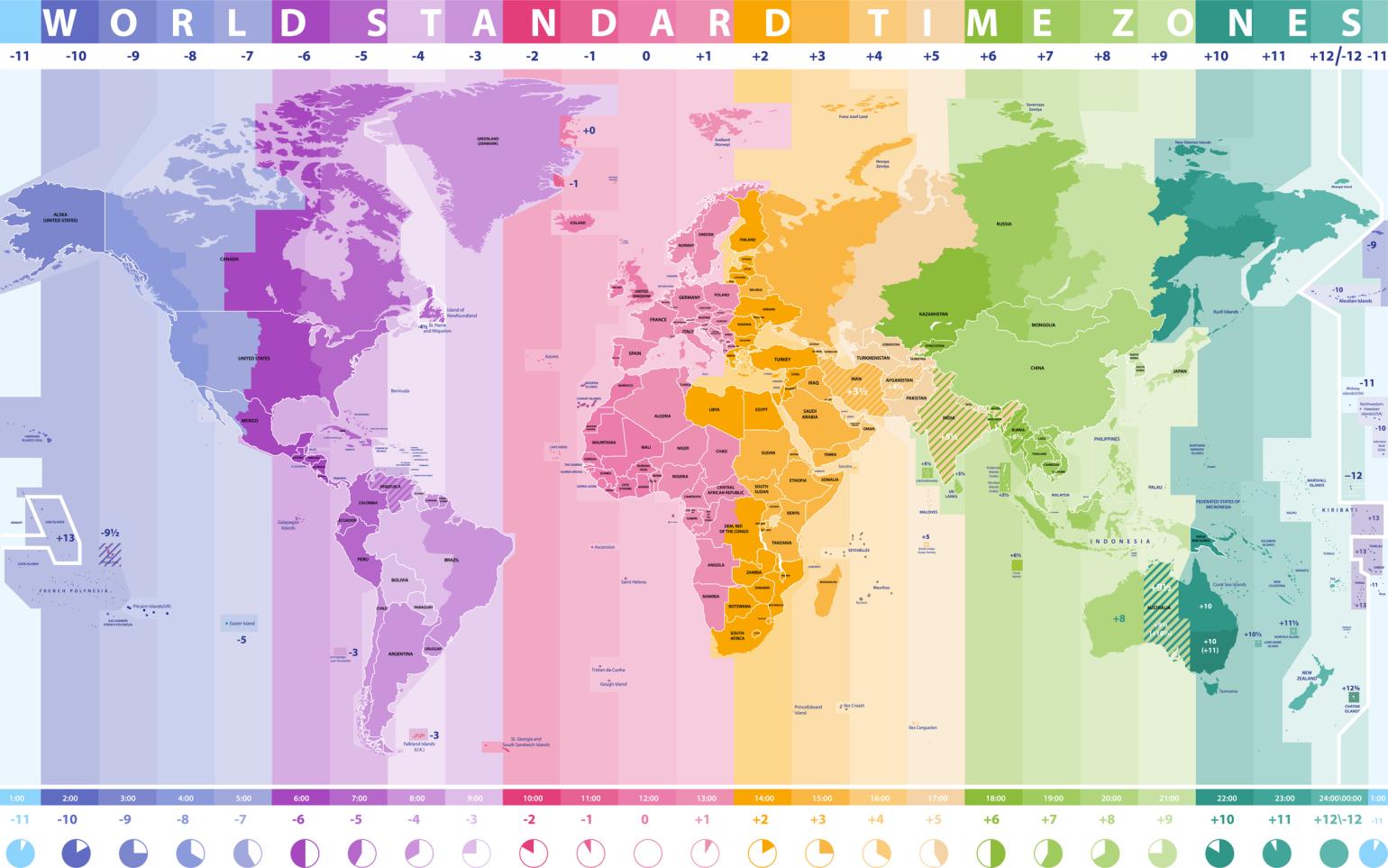
A world map illustrating Coordinated Universal Time (UTC). North Carolina is five hours behind UTC during Eastern Standard Time. (-5 UTC) Calculating the Actual Time of Modification
To figure out when the modification was actually made, you must account for both the Eastern Time Zone and whether or not the page change occurred during Daylight Savings Time:
- Eastern Daylight Savings Time: During spring and summer months, North Carolina is four hours behind UTC. (-4 UTC)
- Eastern Standard Time: During fall and winter months, North Carolina is five hours behind UTC. (-5 UTC)
Using our example (2025-08-06T17:41Z), the page was last updated at 1:41 PM, Eastern Daylight Savings Time on August 6, 2025.
-
4
Understand Change Frequency
Change Frequency indicates how often this page is usually updated, suggesting how often the URL should be crawled. It is simply a suggestion to help web crawlers be more efficient and does not guarantee it will be crawled on a particular schedule.
- Always- Describes pages that change each time they are accessed.
- Hourly
- Daily
- Weekly
- Monthly
- Yearly
- Never- Describes archived URLs.
-
5
Understand Priority
Priority is a numerical score to that indicates the importance of a URL relative to other URLs on your website. This value lets the search engines know which of your URLs are most important for web crawlers to index.
Values range from 0.0 to 1.0, with 1.0 being highest priority. By default, each URL has a priority of 0.5. Since the priority is relative based on your content, it only helps web crawlers to choose which URLs on your own website are most important.
A higher priority value increases the likelihood that your most important pages are present in a search index, but it is unlikely to influence the position of your URLs in a search engine's result pages.
-
6
Using my Sitemap
The hard work is already done for you. The Digital Commons platform uses the Drupal XML Sitemap module to generate your Sitemap. We submit the Sitemap to search engines on your behalf when your site is initially created. All Content Types except Alerts are included in the Sitemap.
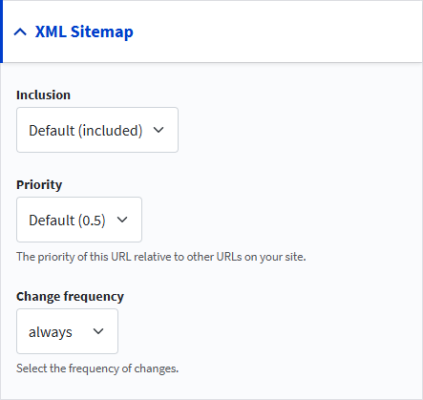
If you wish to change the Priority or Change Frequency for a given page, use the Side Panel on the Content Type and expand the section for XML Sitemap.