
Using the PDF to HTML Page Conversion Service
-
1
How the Service Works
- Convert PDF to HTML: Most PDFs can be turned into a one-column HTML page based on Digital Commons Site Page. You can edit these pages as you would any other site page.
- Redirects: Links to old PDFs will automatically redirect visitors to the new HTML Page created from the PDF content. URLs for the new pages will use the /html/ path after the domain.
- Replacement: The HTML Page will replace the PDF, not appear alongside it.
- Recently edited PDFs will be prioritized for upload to the conversion tool going forward.
AccordionWe recommend replacing PDF forms with Webforms wherever possible. You must be a Web Manager with additional training to work with Webforms.
If you keep a PDF form online, it must meet accessibility standards (WCAG 2.1 Level AA).
Some documents, like legal files or highly formatted layouts, must stay in PDF format. These documents need accessibility remediation, either by your agency or through a vendor hired under a state contract.
Password protected PDFs are not eligible for this conversion process. These documents need accessibility remediation, either by your agency or through a vendor hired under a state contract.
-
2
Open the PDF Accessibility Tool
The user roles that have access to this tool are Web Manager and PDF Accessibility Reviewer. The Web Manager can assign the PDF Accessibility Reviewer role to any existing user on their website team.
Navigate to Admin > PDF Accessibility in your toolbar.
-
3
User Interface: PDF Records
When the tool is opened, the dashboard loads to the PDF Records tab.
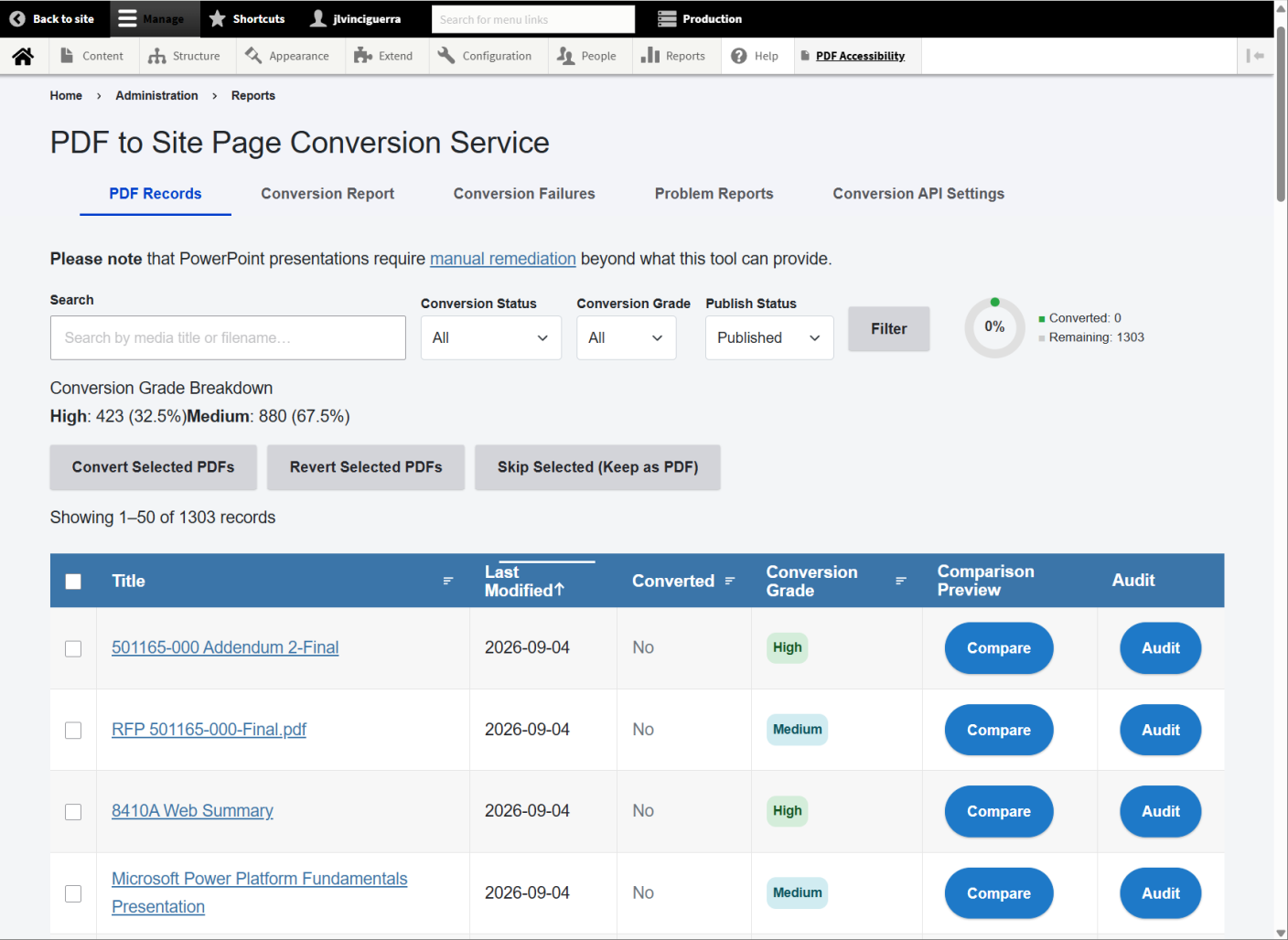
Enlarge Image AccordionWhen you open the tool, all converted PDFs are displayed in a PDF Records table. You can scroll through the list or find a specific PDF using Search and Filter.

Enlarge image Search for a Document
- Enter a keyword from the document Title in the Search field (Example: GICC).
- Select the Filter button.
Filter by Conversion Status
- Select an option from the Conversion Status drop-down menu: All, Converted or Not Converted.
- Select the Filter button.
Filter by Conversion Grade
- Select an option from the Conversion Grade drop-down menu: All, High, Medium, Low, or Skipped.
- Select the Filter button.
Filter by Publish Status
- Select Publish to help prioritize conversion.
Progress
A donut pie chart shows the percentage of PDFs that you have converted. It includes a color key denoting the total number PDFs converted versus the total number remaining.
Additional information is provided for each PDF document to help you determine your plan of action. You can sort each the information in each column (ascending or descending) by selecting the column heading.
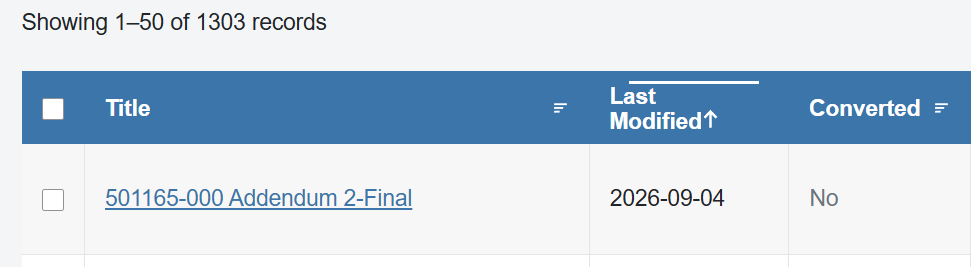
- Title - The Title of the document which is used for the Page Title. It is also a link that opens the document.
- Last Modified - Date the document was last modified.
- Converted - Whether or not the PDF has been converted to an HTML Site Page.
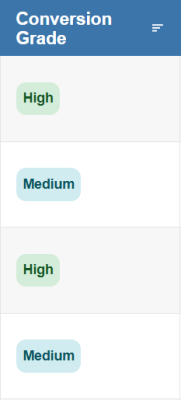
Each document is assigned a Conversion Grade: High, Medium, Low, or Skipped.
Pages with a High grade require less manual remediation than pages with a Medium or Low grade.
Skipped documents will not be converted.
Always thoroughly review all conversions for both content accuracy and digital accessibility.
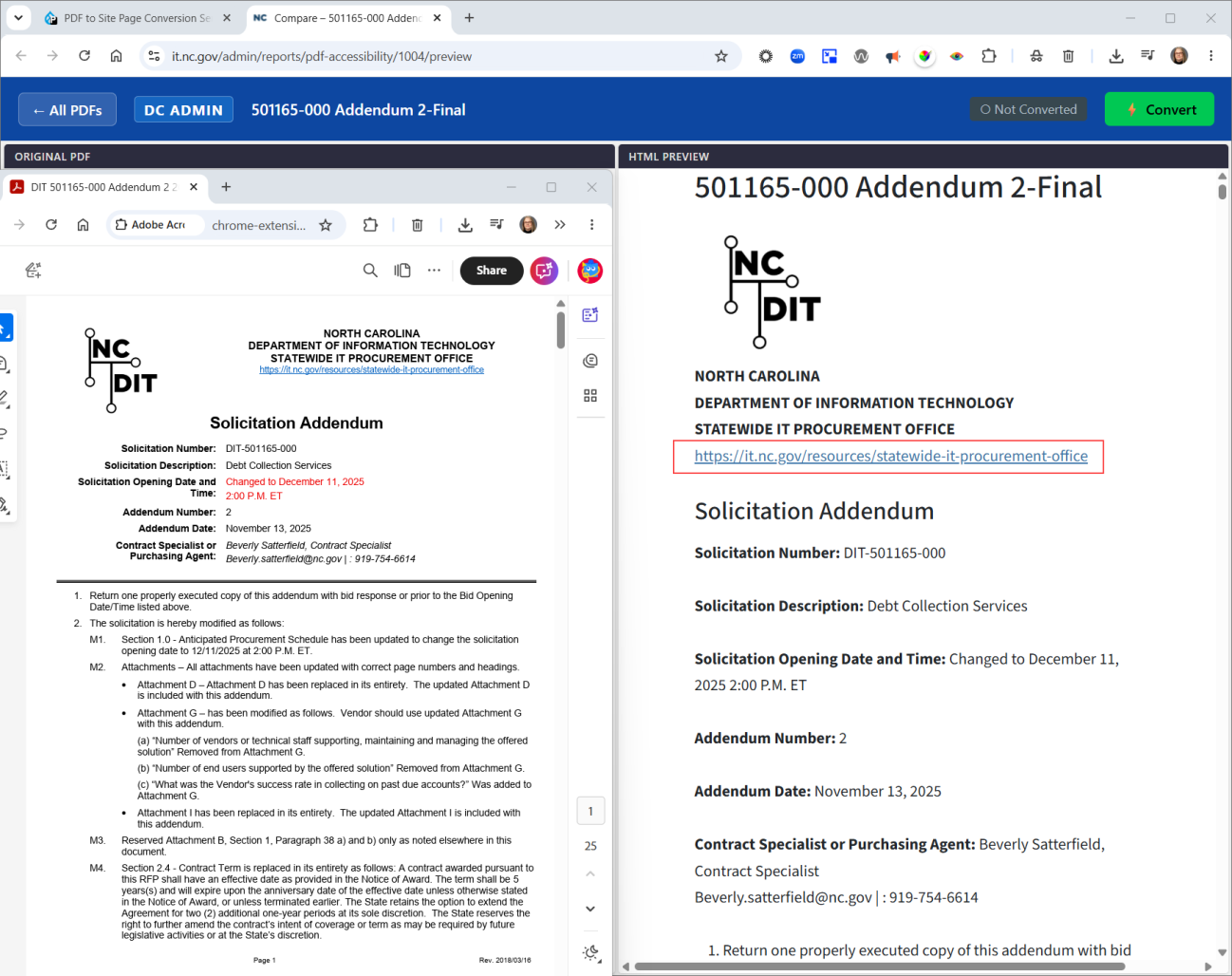
The Compare button opens a side-by-side view of the original PDF and how it will appear as an HTML Site Page after conversion. Note that the example document shown here has a High Conversion Grade but still requires manual remediation for the full URL with no link text.
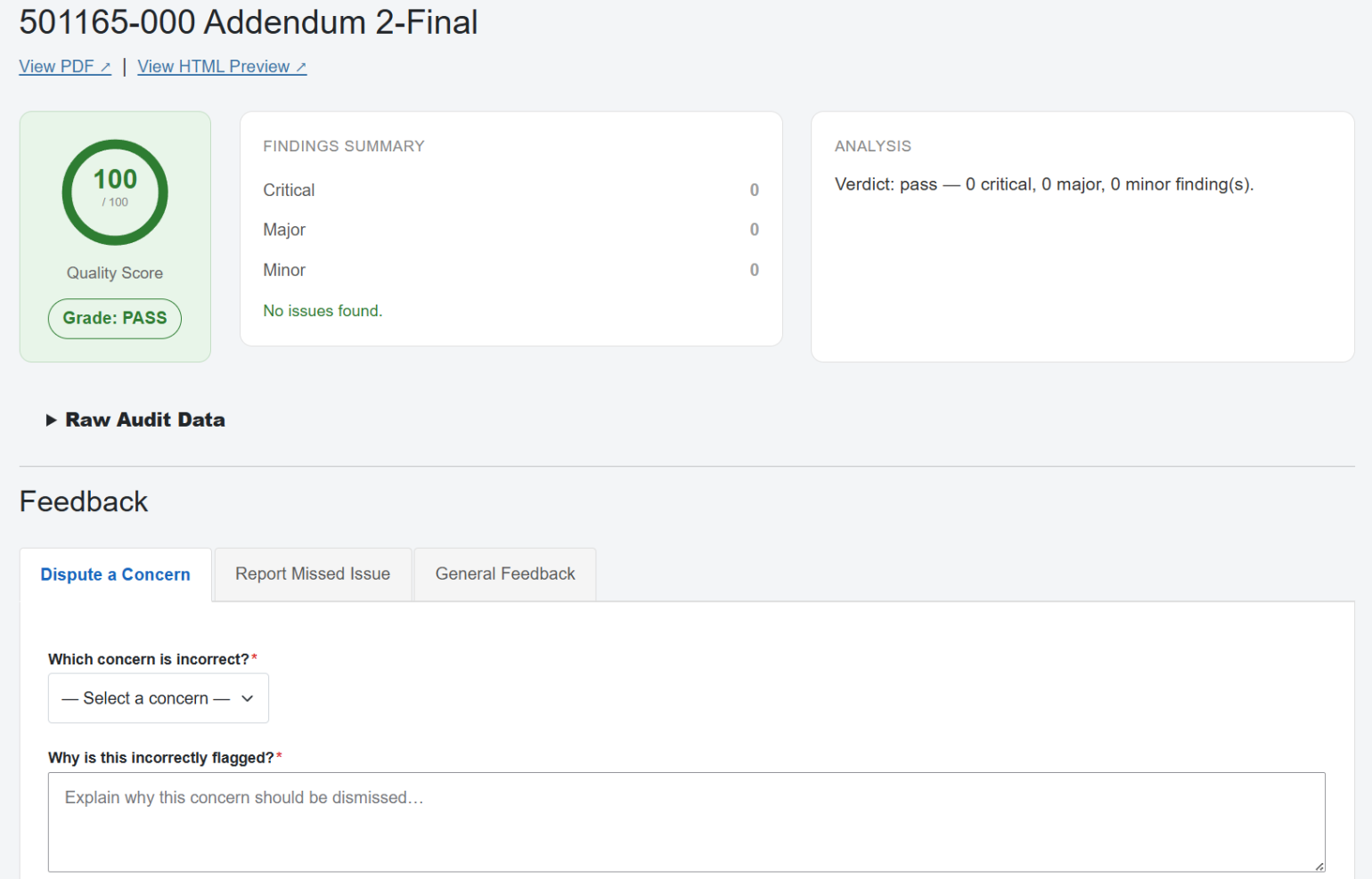
Enlarge Image The Audit button opens an AI-generated audit report about quality of the conversion. You can also use this area to dispute a concern, report a missed issue, or submit general feedback about the PDF to HTML Conversion Tool.
- Complex documents (those with many pages, images, and/or tables) generally have a lower quality score.
- Simple documents (those with few pages, words, images, and/or tables) generally have a higher score.
- After a PDF is converted to a HTML Page, you can edit it as you would edit any other Site Page. Pages with a lower quality score may require more manual editing on your part.
- Always review AI-generated alt text for accuracy and clarity before publishing.
Enlarge Image You may convert (or revert) documents individually or in bulk. Note that converting multiple documents or complex documents with many pages will take more time to process than a single document, or a simple document with few pages.
Convert
- Select one or more documents to convert from PDF to HTML Page.
- Select Convert Selected PDFs.
Revert
- Select one or more documents to revert from HTML Page back to PDF.
- Select Revert Selected PDFs.
-
4
User Interface: Conversion Report
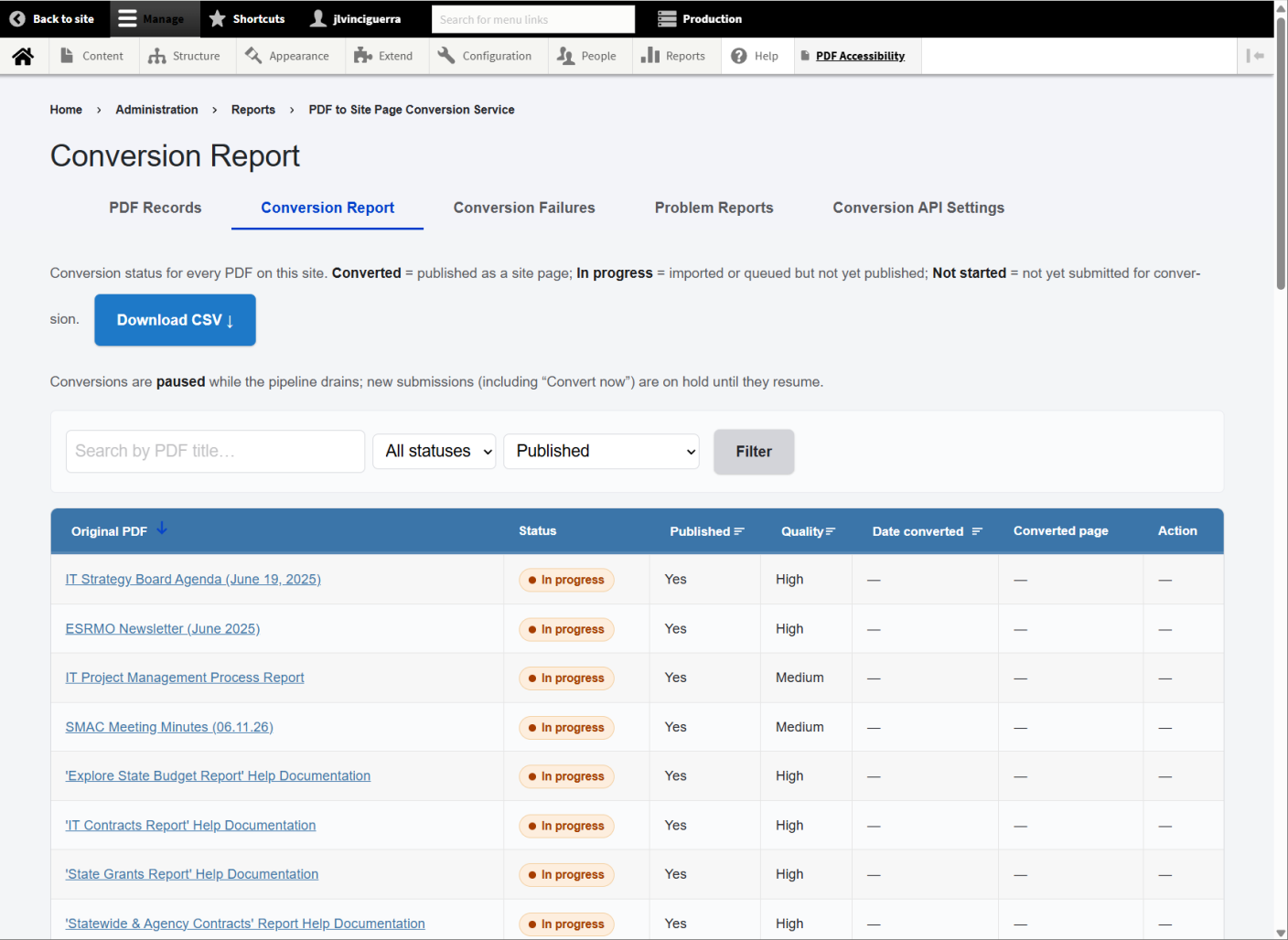
-
5
User Interface: Conversion Failures
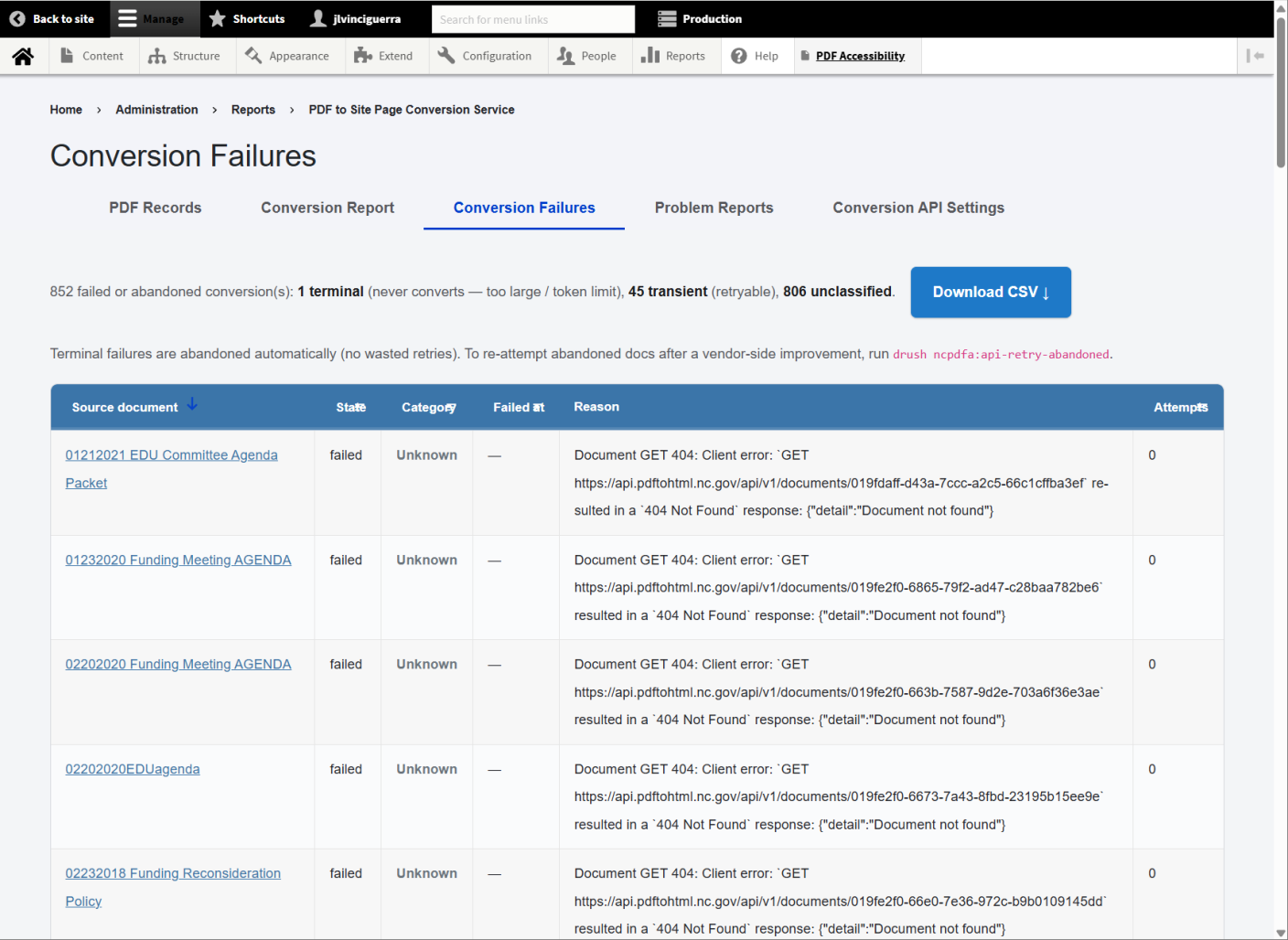
-
6
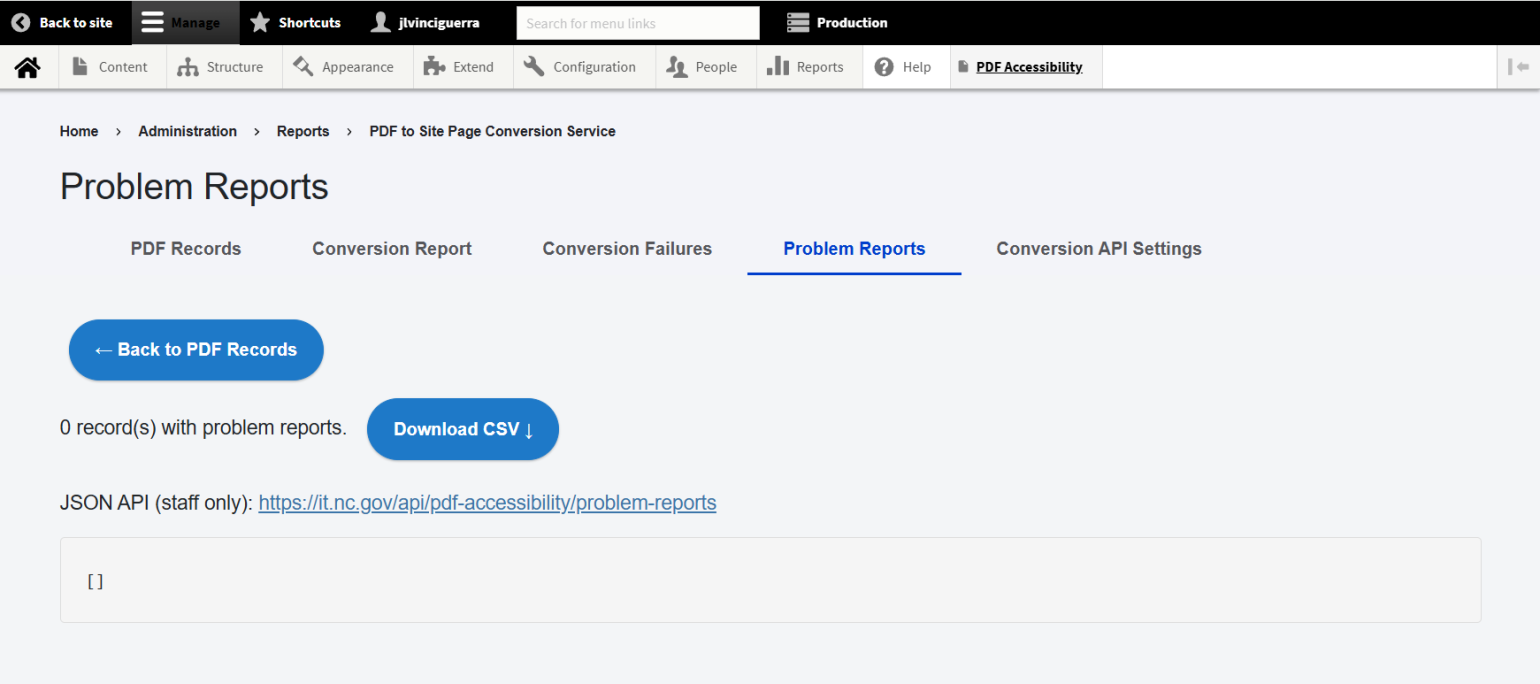
User Interface: Problem Reports
-
7
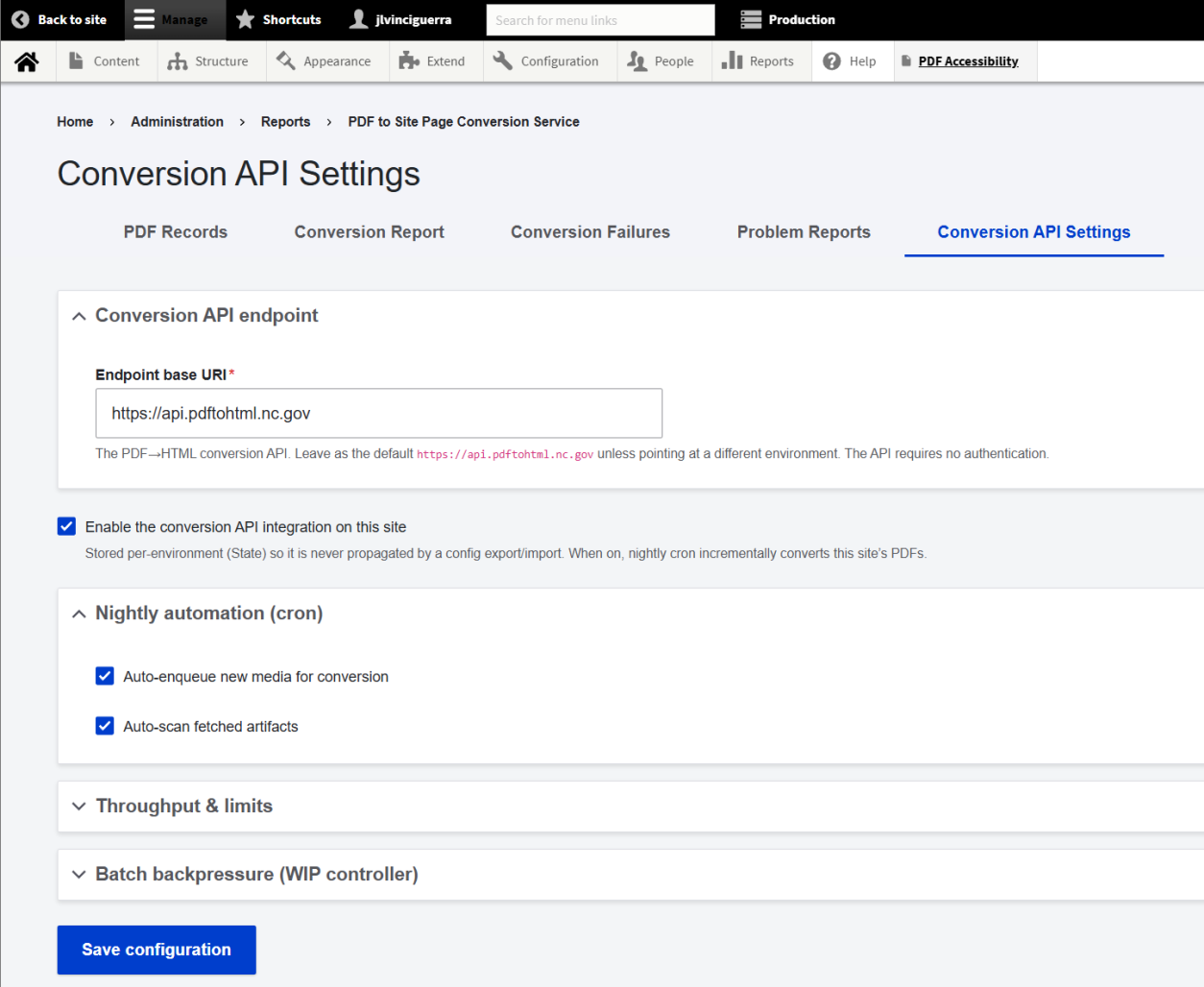
User Interface: Conversion API Settings
-
8
Review Content for Manual Polishing
After converting content, thoroughly review pages to inspect for any formatting or accessibility issues. Polish the final page by editing as necessary.
Focus especially on:
- Headings
- Bulleted and numbered lists
- Accurate alternative text for images
- Tables and header rows or columns
- Tables are provided as both HTML and an image copy. Remove the image copy and keep the HTML table.
- Hyperlinks use meaningful link text.
This page was last modified on 09/09/2026